Showing posts with label Integration. Show all posts

December 11, 2025

OData Authentication for On-Premises D365FO

Hi Folks, 

Integrating with D365FO via OData is a powerful way to enable external systems to interact with ERP data. While cloud-hosted environments use Azure Active Directory (AAD) for authentication, on-premises deployments require a different approach—primarily relying on Active Directory Federation Services (AD FS). This post walks through the essentials of authenticating OData requests in an on-prem D365FO setup.

OData in D365FO exposes data entities over RESTful endpoints, enabling CRUD operations. In on-prem environments, authentication is handled by AD FS, which issues security tokens based on user credentials. These tokens are then used to authorize access to the OData endpoints.

Below are key component for this entire process, 

  1. AD FS Configuration

ü  AD FS must be properly configured and integrated with D365FO.

ü  The AOS (Application Object Server) uses AD FS metadata to validate tokens.

ü  Ensure the AD FS XML configuration file is accessible to AOS.

  1. Client Application Setup

ü  External apps (e.g., Postman, .NET clients) must be registered in AD FS.

ü  You’ll need:

ü  Client ID (from AD FS or Azure App Registration)

ü  Resource URI (typically the D365FO base URL)

ü  Token Endpoint (AD FS OAuth2 endpoint)

  1. Token Acquisition

ü  Use OAuth2 protocol to acquire a bearer token.

ü  The token request includes:

§  grant_type=password

§  client_id

§  username and password

§  resource (D365FO URL)

ü  AD FS returns a JWT token if credentials are valid.

  1. Calling OData

ü  Include the token in the Authorization header:  Authorization: Bearer <access_token>

ü  Use standard OData URLs like:  https://<your-d365fo-url>/data/Customers 


Lets take an example to authentication via Postman;

  1. Get Token

ü  POST to AD FS token endpoint: https://<adfs-url>/adfs/oauth2/token

ü  Body (x-www-form-urlencoded):

            client_id=<your-client-id>

username=<your-username>

password=<your-password>

grant_type=password

resource=https://<your-d365fo-url>


  1. Use Token

ü  Add Authorization: Bearer<token> header to your OData request.

  1. Test Endpoint

ü  GET:  https://<your-d365fo-url>/data/Customers


Please be aware; 
  • Token Expiry: Tokens typically expire after 1 hour. Refresh or reacquire as needed.

  • AD FS Clock Skew: Ensure time sync between AD FS and AOS servers.

  • SSL Certificates: AD FS endpoints must be secured with valid SSL certs.

  • User Permissions: The authenticated user must have access to the data entities.

-Harry Follow us on Facebook to keep in rhythm with us. https:fb.com/theaxapta

November 13, 2025

Working with Bicep – Part 2: Azure Function App Deployment

Hi Folks, 

In Part 1, we explored how to use Azure Bicep to deploy Logic Apps and integrate with Dynamics 365 for Finance and Operations (D365FO). Now, in Part 2, we’ll extend that architecture by deploying Azure Function Apps using Bicep—enabling custom logic, token handling, and deeper orchestration capabilities.

Just for a recap, lets understand why Azure function is so awesome, Azure Functions are serverless compute services ideal for lightweight processing, transformations, and integrations. When paired with Logic Apps, they offer:
  • Custom logic execution (e.g., token parsing, data shaping)
  • Event-driven triggers (e.g., D365FO business events)
  • Scalable backend processing without managing infrastructure
In todays post lets take a real time scenario, To authenticate Logic Apps with D365FO, you often need to retrieve an OAuth token. Here’s how an Azure Function can help, below is sample code which can be called from Logic Apps to retrieve and inject the token dynamically.


  Here are some known issues and their possible fixes (atlest they worked for me ;) )


-Harry Follow us on Facebook to keep in rhythm with us. https:fb.com/theaxapta

September 30, 2025

Working with Bicep – Part 1: Setup, Licensing, and D365FO Integration


As enterprise solutions evolve, Infrastructure as Code (IaC) is becoming a cornerstone of modern DevOps practices. While ARM templates have long been the standard for Azure resource deployment, Bicep—a domain-specific language (DSL) for ARM—offers a cleaner, more maintainable alternative.

In this two-part blog series, we’ll explore how to use Bicep to deploy Azure Logic Apps, with a focus on integrating with Dynamics 365 for Finance and Operations (D365FO). In Part 2, we’ll extend this by incorporating Azure Functions into the mix.

Why Bicep Over ARM Templates?

ARM templates are powerful but verbose and error-prone. Bicep simplifies this by offering:
- Simplified syntax: No more deeply nested JSON.
- Modularity: Reusable components via modules.
- Better tooling: IntelliSense, type safety, and validation in VS Code.
- Native support: Compiles directly to ARM templates.

Tools Required

1. Azure CLI (v2.20.0+)
2. Bicep CLI (or use `az bicep install`)
3. Visual Studio Code with the Bicep extension
4. Access to Azure Subscription with permissions to deploy resources
5. Logic Apps Standard or Consumption Plan

Licensing Considerations

- Logic Apps Consumption: Pay-per-action; no upfront cost.
- Logic Apps Standard: Fixed pricing per integration service environment (ISE) or App Service Plan.
- D365FO: Ensure the user/service principal has appropriate OData API permissions (typically via Azure AD App Registration).

Sample Bicep Template for Logic App Deployment

Here’s a minimal Bicep file to deploy a Logic App (Consumption Plan):

param logicAppName string = 'd365fo-integration-app'
param location string = resourceGroup().location

resource logicApp 'Microsoft.Logic/workflows@2019-05-01' = {
  name: logicAppName
  location: location
  properties: {
    definition: loadTextContent('./logicapp-definition.json')
    parameters: {}
  }
}

Sample Logic App: Calling a D365FO Service

Let’s say you want to call a custom service in D365FO via OData. Your Logic App might include:
1. HTTP Trigger
2. HTTP Action to call D365FO

Example HTTP Action Configuration:

{
  "method": "GET",
  "uri": "https://<your-env>.cloudax.dynamics.com/data/CustomService",
  "headers": {
    "Authorization": "Bearer @{body('Get_Token')?['access_token']}",
    "Accept": "application/json"
  }
}

To authenticate, use Azure AD OAuth 2.0 with a client credential flow. You can retrieve the token using a separate HTTP action or Azure Function.

Folder Structure Recommendation

/logicapps
  ├── main.bicep
  ├── logicapp-definition.json
  └── parameters.json

Deployment Command

az deployment group create \
  --resource-group my-rg \
  --template-file main.bicep

In the next post, we’ll explore how to extend Logic Apps with Azure Functions, enabling more complex orchestration and custom logic—especially useful when working with D365FO’s business events or data transformations.

-Harry Follow us on Facebook to keep in rhythm with us. https:fb.com/theaxapta

June 30, 2025

Custom web service in D365FO - Part-II


Hi Folks,

In Part 1, we covered the foundational elements of creating custom services in Dynamics 365 Finance and Operations (D365FO), including the architecture, request/response contracts, and service class. In this second part, we’ll explore how to implement business logictest your service, and handle errors effectively to ensure your service is robust and production ready. Its important you take a look to my previous post as I will carry on example from that post.

 Custom web service in D365FO - Part-I

Implementing Business Logic

Once your service class is set up, the next step is to implement meaningful business logic. This could involve querying tables, performing validations, or updating records. Here's an enhanced version of the processMsg() method with actual logic:


Testing the Service

Once deployed, you can test your service using tools like Postman or SoapUI. Here's how to do it with Postman:

  1. Set the URL:

https://<your-environment>.cloudax.dynamics.com/api/services/TheAxaptaInterface/TheAxaptaService/processMsg

  1. Set Headers:
    • Content-Type: application/json
    • Authorization: Bearer token (use OAuth 2.0)
  2. Request Body (JSON):
  3. Send Request and inspect the response.

Error Handling and Logging

Robust error handling is essential for production-grade services. Here are some best practices:

  • Use try-catch blocks to handle both X++ and CLR exceptions.
  • Log errors using the EventLog or custom logging frameworks.
  • Return meaningful messages in the response contract to help consumers understand what went wrong.
  • Avoid exposing sensitive data in debug messages.

Example of logging:

EventLog::add(EventLogCategory::Application, EventLogLevel::Error, "CustomServiceError", response.parmDebugMessage());


-Harry Follow us on Facebook to keep in rhythm with us. https:fb.com/theaxapta

April 09, 2025

How to trigger Business event using x++ code

Hi Folks, 

I recently faced issue where PO confirmation business event was not triggering and failing my interface. Issue was whenever after first PO confirmation if user make change to PO header delivery date or cancellation date  and reconfirm the PO, it wont trigger the respective Business event. 

[Although there are different reason why business event is not considering this change, while if I make any financial changes like qty, line addition, tax etc, it works fine]

Ok lets see now how I can call a business event from code, 

To trigger a business event in X++ code, you need to create a business event contract, an event handler class, and then trigger the event from your X++ code by using the BusinessEvent::newFromTable() and businessEvent.send() methods. (Also,  configure the event in the business event catalog if its not configured)

1. Create a Business Event Contract:
Purpose: Defines the data that will be sent with the business event. For reference check  CustFreeTextInvoicePostedBusinessEventContract.


 2. Create an Event Handler Class:
Purpose: Handles the event when it's triggered, allowing you to perform actions based on the event.
For reference check CustTable_BusinessEvent_EventHandler

3. Trigger the Business Event from X++ Code:
Purpose: Use the BusinessEvent::newFromTable() and businessEvent.send() methods to trigger the event.


here is complete code sample, 


-Harry Follow us on Facebook to keep in rhythm with us. https:fb.com/theaxapta

January 24, 2025

Custom web service in D365FO - Part-I

Introduction

Custom services in Dynamics 365 Finance and Operations (D365FO) allow you to expose custom business logic and data to external systems. This first part of the blog post will walk you through the basics of creating and consuming custom services in D365FO. Custom services are used to expose X++ business logic to external systems via SOAP or RESTful endpoints. They are ideal for scenarios where you need to implement complex business processes that are not covered by standard services.

In later posts, we will discuss some complex scenarios and best practices around web services.

Architecture

Service Request Contract

The service contract defines the operations that the service will expose. This is done by creating a new class with the [DataContractAttribute] and [DataMemberAttribute] attributes. There must be two contract classes: one for the request message and another for the response message. (We will cover this in detail in future posts).

Example:

[DataContractAttribute]
public class TheAxaptaRequestContract
{
    private boolean isShipped;
    private String255 dataAreaId;
    private String255 storeNumber;
    private String255 trackingNumber1;

    [DataMember("TrackingNumber1")]
    public String255 parmTrackingNumber1(String255 _trackingNumber1 = trackingNumber1)
    {
        trackingNumber1 = _trackingNumber1;
        return trackingNumber1;
    }

    [DataMember("IsShipped")]
    public boolean parmIsShipped(boolean _isShipped = isShipped)
    {
        isShipped = _isShipped;
        return isShipped;
    }

    [DataMember("DataareaId")]
    public String255 parmdataAreaId(String255 _dataAreaId = dataAreaId)
    {
        dataAreaId = _dataAreaId;
        return dataAreaId;
    }

    [DataMember("StoreId")]
    public String255 parmStoreNumber(String255 _storeNumber = storeNumber)
    {
        storeNumber = _storeNumber;
        return storeNumber;
    }
}

Service Response Contract

Example:

[DataContractAttribute]
public class TheAxaptaResponseContract
{
    private boolean success;
    private str errorMessage;
    private str debugMessage;
    private System.String salesOrder;

    [DataMember("Message")]
    public str parmMessage(str _value = errorMessage)
    {
        if (!prmIsDefault(_value))
        {
            errorMessage = _value;
        }

        return errorMessage;
    }

    [DataMember("Success")]
    public Boolean parmSuccess(Boolean _value = success)
    {
        if (!prmIsDefault(_value))
        {
            success = _value;
        }

        return success;
    }

    [DataMember("DebugMessage")]
    public str parmDebugMessage(str _value = debugMessage)
    {
        if (!prmIsDefault(_value))
        {
            debugMessage = _value;
        }

        return debugMessage;
    }
}

Service Class

This is the class where the actual business operation executes. It takes the request message from the respective contract class and processes it to create a response message. Create a new class to implement the service. This class should extend the SysOperationServiceBase class and include the business logic for the service operations.

Example:

public class TheAxaptaService extends SysOperationServiceBase
{
    TheAxaptaResponseContract response = new TheAxaptaResponseContract ();
[AifCollectionType('salesOrder', Types::Class, classStr(TheAxaptaRequestContract)),
AifCollectionType('return', Types::Class, classStr(TheAxaptaResponseContract ))]
public processMsg() { TheAxaptaRequestContract request;
// Now you can access the parm methods of the request class to get different values from the request Str StoreId = request.paramStoreNumber(); response.parmSuccess(True); response.parmMessage("Message read"); } }

Register the Service

Register the service in the AOT (Application Object Tree) by creating a new service node. Set the class and method properties to point to your service implementation.

  1. In the AOT, right-click Services and select New Service. (e.g. TheAxaptaInterface)
  2. Set the Class property to your service class (e.g., TheAxaptaService).
  3. Set the Method property to the service method (e.g., processMsg).

Deploy the Service

Deploy the service to make it available for consumption. This can be done by right-clicking the service node in the AOT and selecting Deploy Service Group.

Consume the Service

A third part can consume this service using the below syntax

<EnvironmentURL>/API/services/TheAxaptaInterface/TheAxaptaService/processMsg

and send the request message in body.

If you want to setup postman to test your services by yourself, I would recommend to checkout this blog post, Best way to do Postman setup with D365FO.


Here is complete code uploaded on Git Repository

April 30, 2023

Azure Key vault parameter setup in D365FO

Hi Folks, 

In this post, I am going to share how to configure Azure key vault parameters in Dynamics 365 Finance and Operations  (Let's call it FinOps until we have a new name from Microsoft :) ).

First, let's understand what the use of this form is, This is primarily used for integration scenarios where a business needs to save sensitive data like security keys or certifications and a functionality or application working with this data must support data encryption, working with certificates, etc. As the cloud version of Microsoft Dynamics 365 for Finance and Operations doesn't support local storage of certificates, customers need to use key vault storage in this case. The Azure Key Vault provides the opportunity to import cryptographic keys, and certificates to Azure, and to manage them.


Now let's see some prerequisite steps, 

1. Create a key value on the Azure portal and note the Value URI. This is available on the overview tab.

2. Add your certificate, Secrate, and keys.
3. On the Azure portal, do an app registration and store the client Id and secret key.  
4. Now navigate to D365FO > System admin > Setup > Key Vault Parameters
5. Create a new record and fill below details


6. On the certification tab, add below for each certificate 
Name
Description
Secret – Enter a secret reference to the certificate in the below format
vault://<KeyVaultName>/<SecretName>/(Version if any)
Secret Type: Certificate

7. Click on Validate button to check the setting. 

That is all, now you should be able to access this certificate in your code, here is a sample code to access the certificate, 

public class TheAxaptaAccessKeyVault
{
    public static void main(Args _args)
    {
        KeyVaultCertificateTable    kvcTable;
        str                                        value

         kvcTable  = KeyVaultCertificateTable::findByName("TestKeyVault");
        value         = KeyVaultCertificateHelper::getManualSecretValue(certTable.RecId);

        info(value); //This will give you stored in the certificate. 
}

Cheers!!!

-Harry Follow us on Facebook to keep in rhythm with us. https:fb.com/theaxapta

February 25, 2023

Best way to do Postman setup with D365FO

Hi Folks, 

There are very simple steps to do initial setup between Postman and D365FO environment. Please follow below steps.

(Make sure you have added a record in 'Azure Active Directory applications' in D365FO under Sys admin > setup > Azure Active Directory applications )

1. Download postman from here and install on you machine.

2. Do app registration on Azure portal, and make sure you copy all details from app registration to a safe place as not all information will available for later use.

3. Go to environment in left pane and create a new environment, you can name it as same as your D365FO environment like DEV01, UAT, Test etc. This also help when you are working with multiple environment and you keep using same get/post script to access different environments. 

4. Add all the variables here as below

Client_ID: You will get it from Azure app registration. 
grant_Type: client_credentials
resource: D365FO environment URL i<https://D365FOUrl/>
client_secret: You will get it from Azure app registration. 
tenant_id: You will get it from Azure app registration. 
access_token: To generate access token follow step 9.


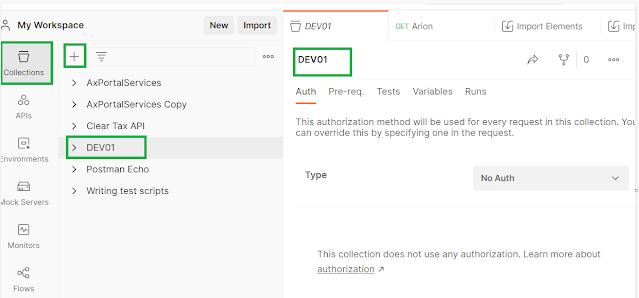
5. Now create new collection and name it with your environment name eg. Dev01


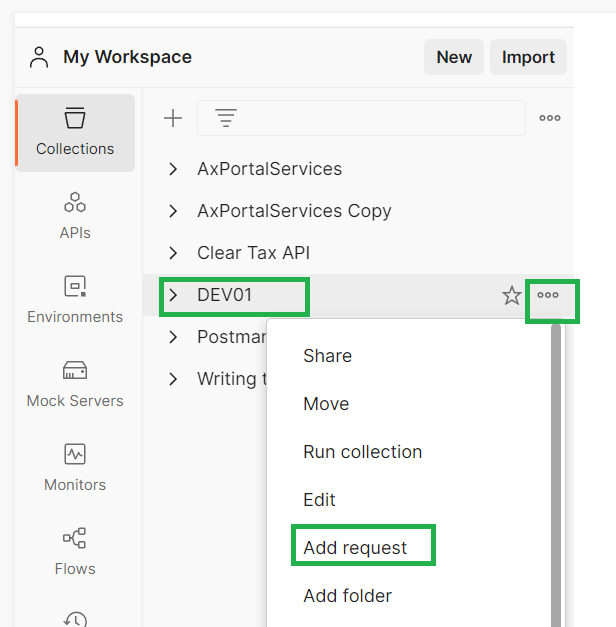
6. Next, click on 3 dots next to collection name and select 'add request'


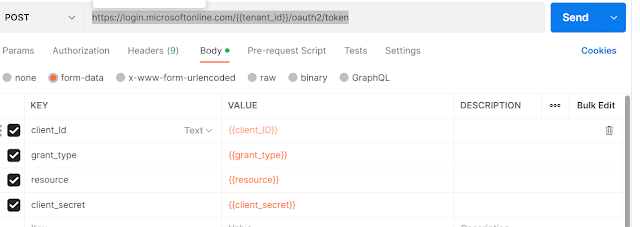
7. Name this request as 'Authorization', you can name it as per your use like getting public entities details or get a specific entity data or metadata. In the post request paste below as is.

https://login.microsoftonline.com/{{tenant_id}}/oauth2/token


8. Select 'From-data' in body and set below details.


Now you see we parameterize most of things and you don't need to create multiple request for different environments, you can simple change the environment from right top corner. 

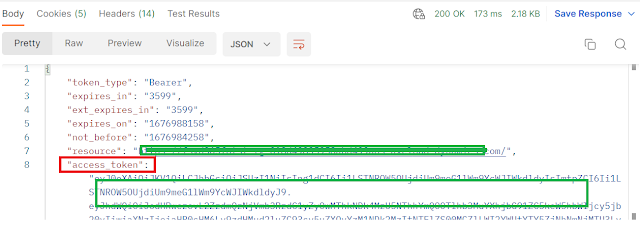
9. Now,  Click on send button and you should get a status 200 message with access token. 
You can add the access token to your environment variable. 

Here we have completed the Postman setup. Now you can try few things to explore this further

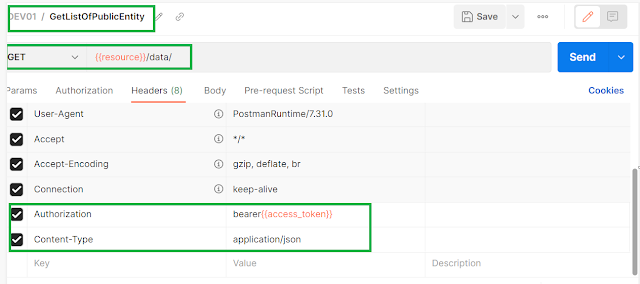
10. Add one more request in your collection, and add details as below to get list of public entities. 


-Harry Follow us on Facebook to keep in rhythm with us. https:fb.com/theaxapta

December 26, 2022

More about Bicep

Hi Folks, 

Hope you had a great Christmas time and enjoying your holiday time to get ready for the New year. 
Sometime last year Microsoft started promoting Bicep as a new tool (language) for Logic app development, if you haven't read my post on that, pl follow the below link. 

Now its been enough time and Microsoft really come up with a lot of good documentation and real-time example to use bicep to design your solution. Below are some useful links to explore more about bicep, 


-Harry Follow us on Facebook to keep in rhythm with us. https:fb.com/theaxapta

November 11, 2022

Useful links for OData and Rest API integration

Here are some handy links for D365FO integration with OData or using Rest API, 


-Harry Follow us on Facebook to keep in rhythm with us. https:fb.com/theaxapta

July 30, 2020

Say Hello to Microsoft DataFlex

Hi Folks,

Here we go again with a rebranding around CDS which is now known as DataFlex, yes that's right, CDS is now DataFlex - a new low-code data platform for Microsoft Teams. You can create and run thousands of applications, flows, and intelligent agents with a smart, secure, and now with scalable low-code data platform.

What it offers:

DataFlex Pro: Its more or less the same as what we have in CDS today including same licensing i.e.

            $10/app/User/Month

            $40/User/Month – unlimited apps


DataFlex: Its basically a new simplified version or I would say lightweight of CDS for building an app on top of Microsoft Team. It includes as free with your Microsoft office 365 license which includes Teams. 

Below is a screenshot for reference, hoe easily you can create different tables and columns to meet business requirements.


Why DataFlex?


i.                    Provides the ability to use model-driven power apps in Teams with no extra licensing cost.

ii.                 Currently, to build an app for Team you need to use the SharePoint list to save some licensing cost that too not a relation Database and without scalability. While DataFlex provides a free relation DB to build a team-based PowerApps

iii.               A low code tool that enables you to build Team apps and bots similar to native apps.

iv.               Streamline identity protection and secure guest access with identity management and multifactor authentication.

v.                  Reduce data management stress and let Dataflex Pro determine your storage needs for relational data, file and blob storage, logs, and search indexing.

vi.               Quickly develop applications your way—either with custom code or using no or low-code—across Azure, Office 365, and Dynamics 365, and with more than 300 connectors.

vii.            Create a solid data foundation using automatic duplication detection and more than 300 data transformations that clean and reshape data

Further references:

Introducing Project Oakdale, a new low-code data platform for Microsoft Teams

> CDS Doc


-Harry Follow us on Facebook to keep in rhythm with us. https:fb.com/theaxapta

September 02, 2019

Set up MT940 format for bank reconciliation #MSD365FO

Hi Folks,

In D365FO advance bank reconciliation is a feature to import bank statement file and automatically reconcile with related bank accounts. There are many formats which a bank commonly used i.e. ISO20022, MT940, BAI2.

In this post, we will see how to set up the MT940 format which is commonly used in most banks nowadays.

Let's get started.

Step 1: Get sample entity template and transformation files
To transform the source file into FnO format, you need few files and these are available under 'Resources' node of AOT. Files names are as below


Step 2: Create an import project
Under Data management workspace, create an import project with name MT940. Add a new file with below details
I. Entity Name: Bank statements
II. Upload file name: SampleBankCompositeEntity (which you got from Resource node)


Once file successfully uploaded, click on view map. On next screen select BankStatementDocumentEntity from the list and click on 'View Map' and go to 'Transformation' tab. Click new and click upload file, select different XLST file one by one, in the sequence shown in below image.


Step 3: Setup Bank statement format
Navigate to Cash and Bank management > Setup > Advance bank reconciliation setup > Bank statement format.
Here create a new record as below


Step 4: Configure the bank account to use Advance reconciliation option
Navigate to Cash and Bank management  > Bank accounts. Select a Bank account to view details. Under Reconciliation tab,
I. Set the 'Advance bank reconciliation' option to 'yes'. This is a one-time setup, the system doesn't allow to undo/change once set to yes.


II. Set Statement format field to format which we have created in step 3 i.e. MT940


Step 5: Testing
Navigate to Cash and Bank management  > Bank accounts. On Reconcile tab click on Bank statements.
On the next screen click on Import statement. A dialog will pop up. Fill/select details as below

I. Import statement for multiple bank account in all entities. : Set this as Yes if your file contains more than one bank accounts.
II. Bank Account: If the source file contains a single bank, select that bank here.
III. Statement Format: Select your statement format here it must be MT940.
IV: Bank statement file import: Select source file and click upload.
V: Click ok and it must import transaction in the current form.

Note: After every DB refresh you need to redo import project. DB will break the links and you need to remove the entity from your import project and add upload the transformation files accordingly.

-Harry Follow us on Facebook to keep in rhythm with us. https:fb.com/theaxapta

PS: This post referred to MS documentation. 

May 13, 2019

How to add 'Actions' on Odata entities


Hi Folks,


[Updated on Jan 27, 2020
I got one feedback about Odata action on entity extension are not supported. It worked for me for one odd case, I yet to test myself if its not working now. I would request all readers to take necessary caution while trying below code. Thanks to Ashish for sharing his feedback.]


In this post, I'll show how to add a new action to D365FO Odata entities which you may want to access in Logic apps or Microsoft Flow. There could be two possible scenarios, either you have custom data entity where you can directly add a method or you have standard data entity for that you need to create extension class.  

First, let's see how to add on the custom entity (yes cause, it's straight forward 😉 ), 

Add your method on data entity and add below attribute
 [SysODataActionAttribute("<MethodName>", false)]
public static void <methodName>(<parameters(optional)>)
{
}

Save, Synch and Build your changes. This method should be available now on OData action in the Logic app or Flow. 

Now the other part, how to add the same in Data entity extension. Create a new class and add below attribute.

[ExtensionOf(tableStr(<data entity name>))]
final class <data entity name>_Extension
{
         [SysODataActionAttribute("<MethodName>", false)]
         public static void <methodName>(<parameters(optional)>)
        {
         }
}

Pl make sure you use '_Extension' keyword for above class, it's mandatory.

That's all for today. Try it and share your feedback. 

[Updated May 18, 2020]

 If you want to return any value use this syntax

 [SysODataActionAttribute("<MethodName>", false), SysODataCollectionAttribute("return", Types::Record, "CarColor")]

         public static void <methodName>(<parameters(optional)>)

        {

         }


Check below link for more details on Odata


Related topics:

-Harry Follow us on Facebook to keep in rhythm with us. https:fb.com/theaxapta